Connect HubSpot to ShareCo
Six steps. You need a HubSpot login that can create service keys, and to be the owner or a manager of your ShareCo workspace.
Open Integrations in ShareCo
Sign in to ShareCo and choose Integrations in the left menu. HubSpot is the second card.
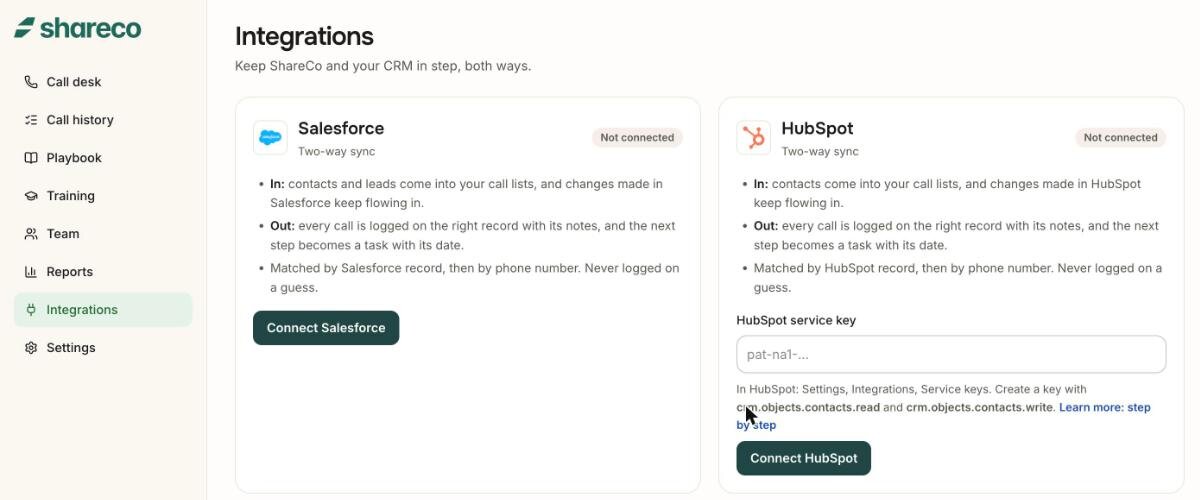
ShareCo, Integrations. Test workspace. Create a service key in HubSpot
In HubSpot, open Settings, then Integrations, then Service keys. Create a new key and give it a name you will recognise, such as "ShareCo".
Give the key two permissions
Tick crm.objects.contacts.read and crm.objects.contacts.write. Read brings your contacts in. Write lets ShareCo log each call and its next step back on the contact. Nothing else is needed.
Copy the key
HubSpot shows the key once. It starts with "pat-". Copy it.
Paste it into ShareCo
Back on the ShareCo Integrations page, paste the key into "HubSpot service key" and press Connect HubSpot. The card changes to Connected.
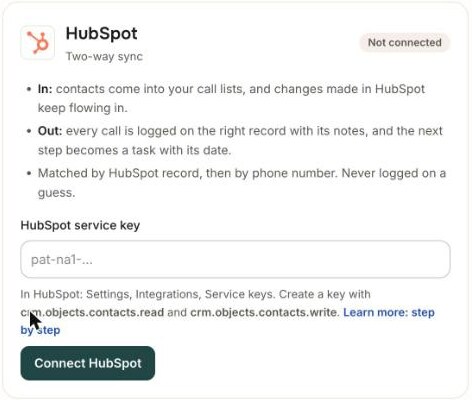
The HubSpot card before a key is pasted. Test workspace. Call your HubSpot contacts
Open the call desk. Your HubSpot contacts are there, marked with the HubSpot logo, with their numbers. After each call, the call and its next step are logged on the contact in HubSpot.
Common questions
- Which HubSpot plan do I need?
- Any plan that lets you create a service key. ShareCo uses standard contacts, calls and tasks.
- Where is my key kept?
- It is encrypted before it is stored and is never shown again, to you or to us. Disconnect on the Integrations page and it is deleted.
- How do I stop the sync?
- Press Disconnect on the HubSpot card in ShareCo, or delete the key in HubSpot. Either one stops it at once.